

Free and open source, for Android TV and Google TV

A Touch of Omanon Your Screen

When the TV goes quiet, its screen stays with you: a view of Oman, the prayer times and iqama, your town's weather, and what's for dinner tonight. All of it set from your phone.

37 Omani wilayats, plus cities across the Gulf and the worldNo account, no adsAndroid 8 or later
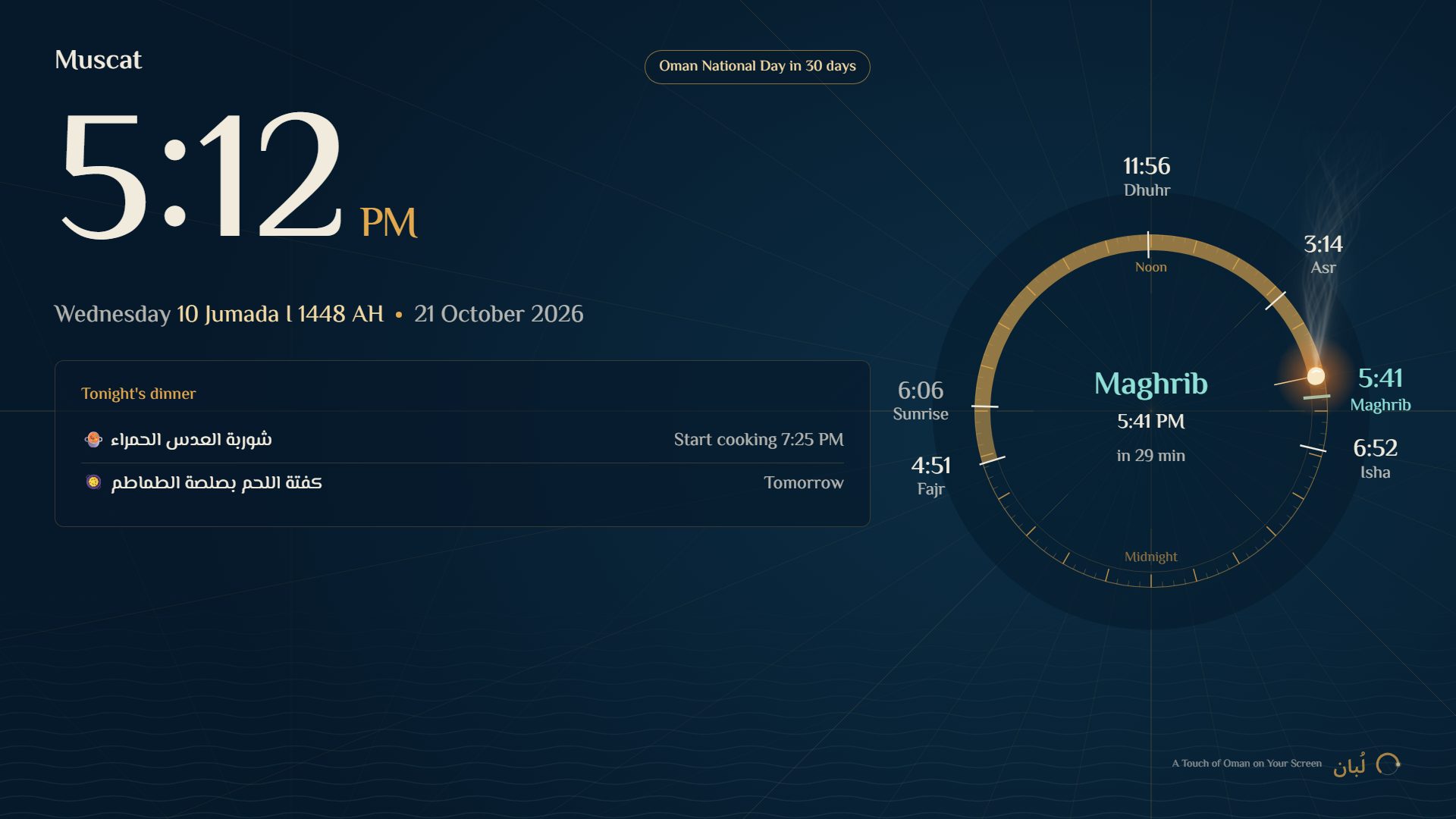
The screensaver in Muscat: the day's compass around the clock at 5:12 pm, and tonight's dinner card
Tonight's dinnerarrives from the Dinner Guide on its own
What Luban does

A screen in step with your day

Arabic first, English if you prefer. And Luban collects nothing about your home.

When the TV dozes off

Instead of a black screen: the Omani navigators' compass turning with the hours of your day, or a photo of Oman's mountains and coast. A clear clock, the Hijri and Gregorian dates, and a countdown to the adhan, then to the iqama, matching the Ministry of Awqaf calendar.

The first thing you see

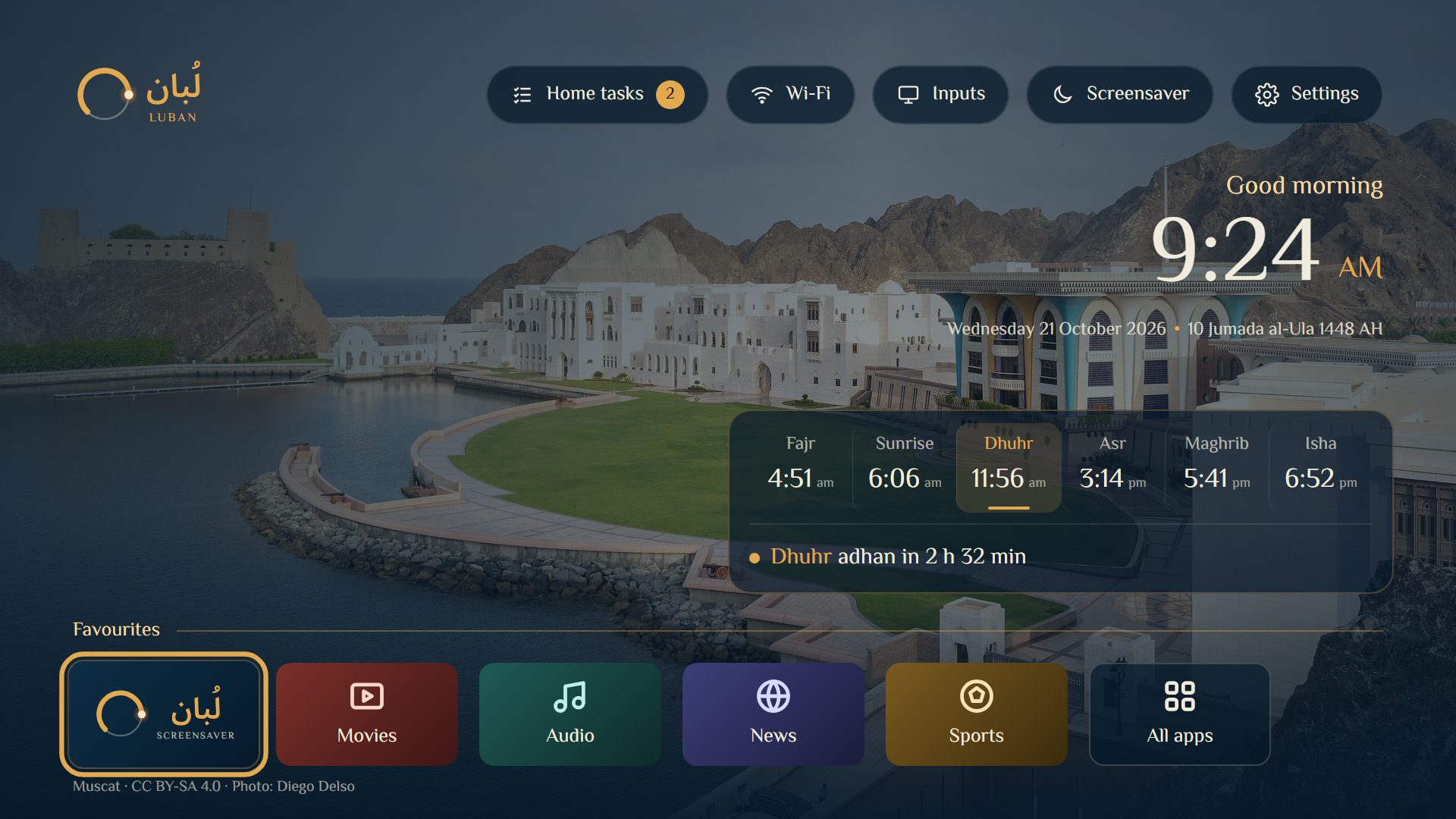
A greeting to suit the hour, today's prayer times, and your TV inputs and favourite apps close at hand, over the day's own photos.

Your phone is the key

Scan the code on the screen, then choose your town and what you'd like to see: a verse for the day, the weather ahead, your team's matches, the gold price in rials. No remote, no menus.

What's for dinner tonight?

Link the screen to the Dinner Guide once, and the whole family can see tonight's meal and when to start cooking. Every change in the guide reaches the screen by itself.

No occasion slips by, either: it counts down to National Day, Ramadan and both Eids, and reminds you when the khareef season comes to Dhofar.

Why “Luban”?
Luban is Arabic for frankincense, which Omanis carried across this sea to the world for thousands of years.

On the screen, “now” is a glowing grain of frankincense travelling along the rim of the navigators' compass, its smoke rising over a chart of the sea.

Take the tour

How it looks on the TV

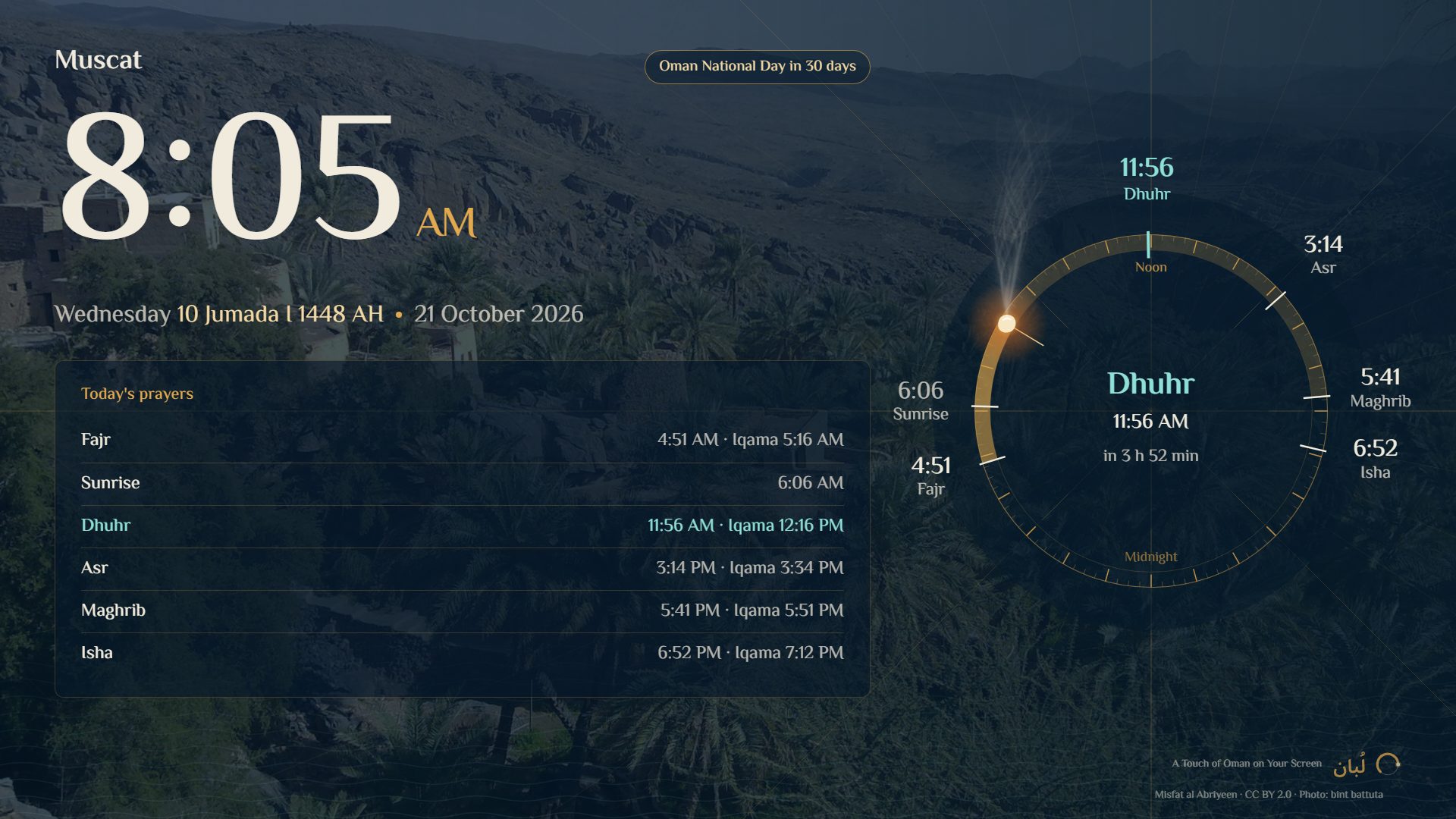
The screensaver at 8 am: today's prayer times with iqama, over a photo of Misfat al Abriyeen
The screensaver in the morning, over Misfat al Abriyeen
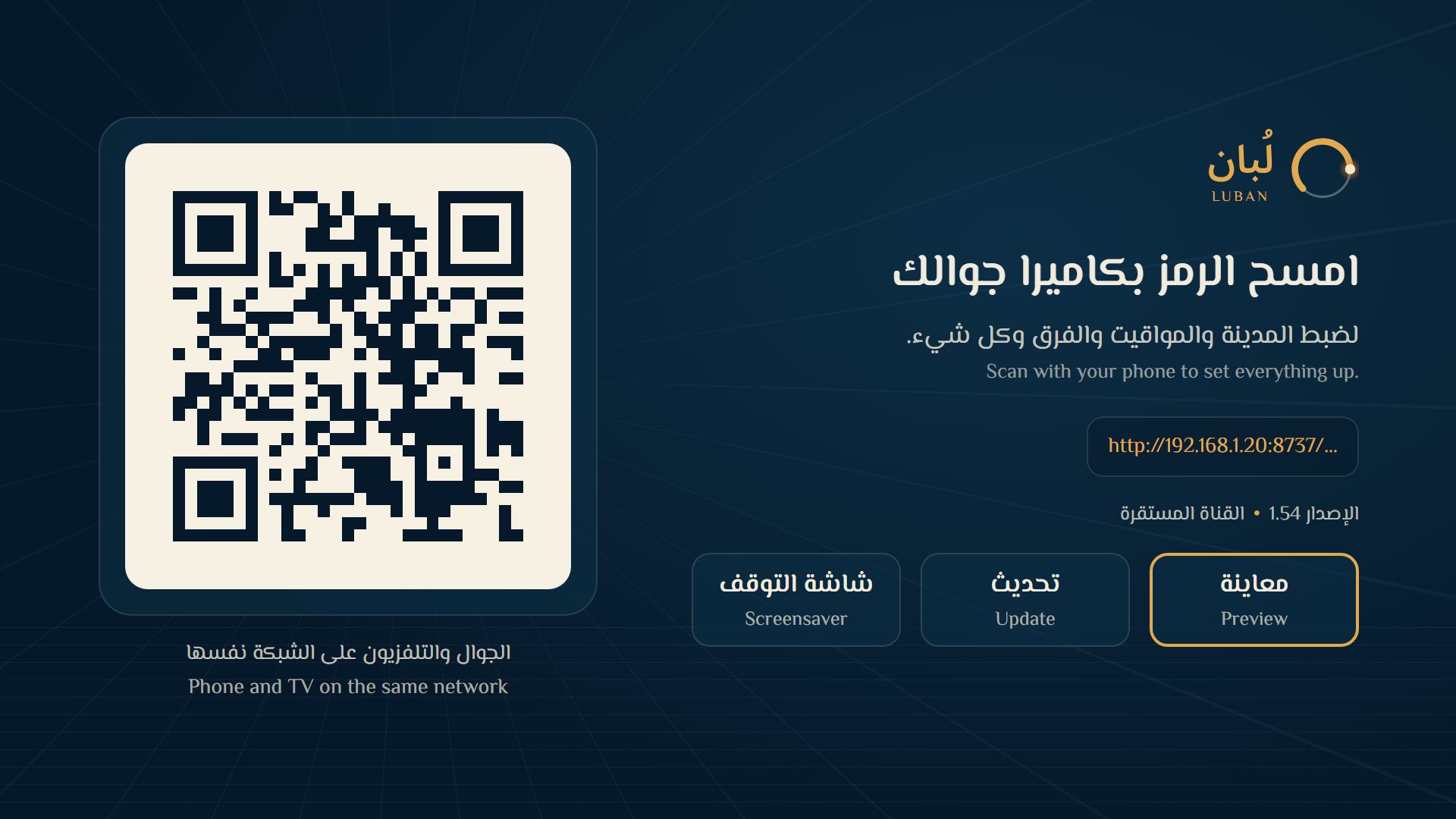
The settings screen: a QR code and the words Scan with your phone to set everything up
Scan the code and you're set
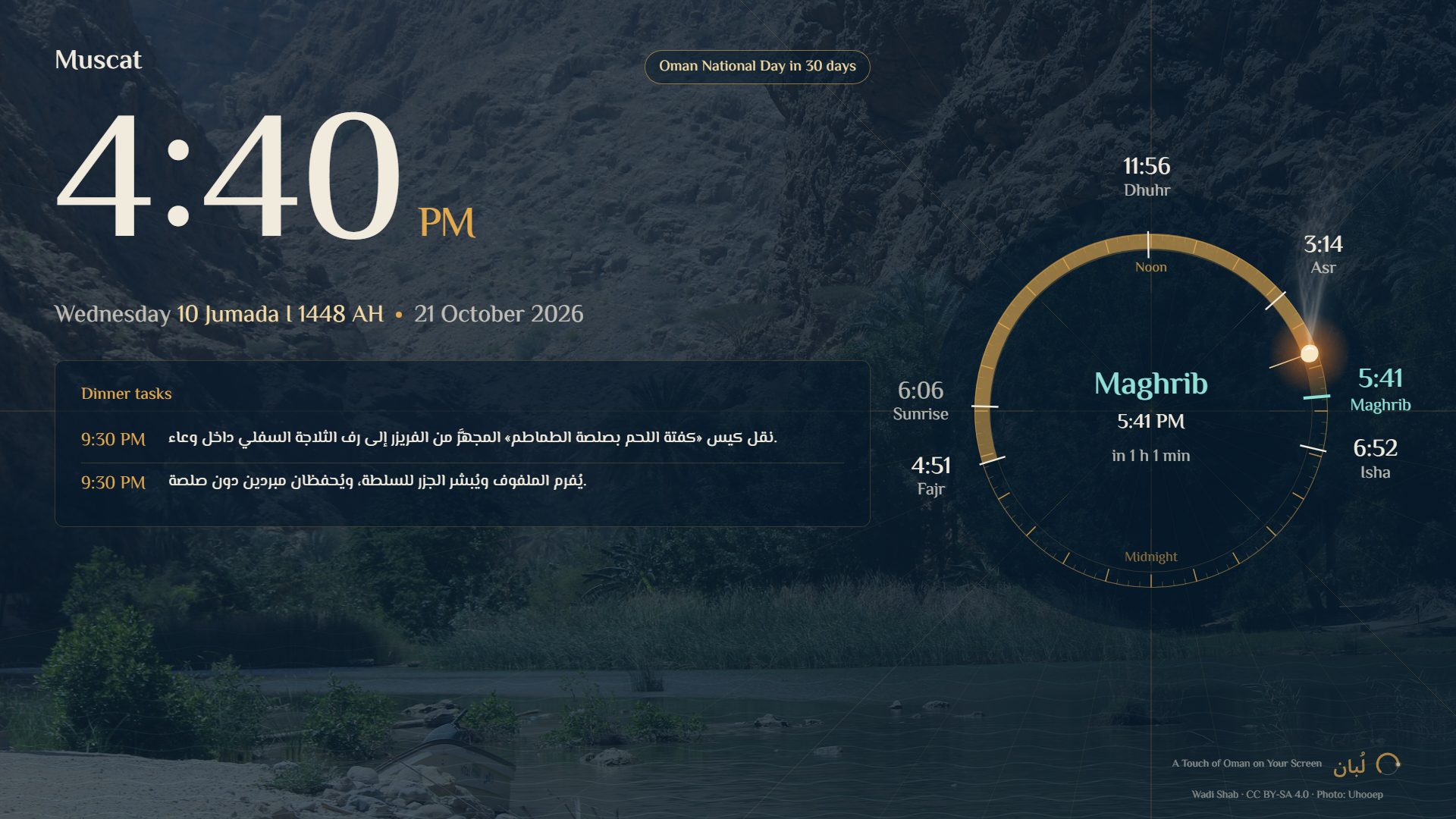
The screensaver showing the dinner tasks card with their times
Dinner tasks on the screen
The home screen: greeting, clock, today's prayers and a row of favourites
The home screen: today's prayers and favourites

Screenshots from a demo set up for Muscat. Photos from Wikimedia Commons, credited on the screen.

Install

Install it once, and Luban takes care of the rest

You need a computer on the same home network, and about a quarter of an hour. After that, updates reach the TV by themselves.

The easy way: let an AI assistant install it

You won't type a single command. The assistant reads the instructions and carries them out on your computer step by step, asking you before each one.

Recommended
  1. Turn on Developer options on the TV

    In Settings, open System, then About. Scroll to Build and press it seven times in a row, until you see “You are now a developer”. Go back one step, open Developer options, and turn on USB debugging.

    Menu names vary a little from one maker to another.
  2. Install Claude on your computer

    Download the Claude app for Windows or Mac, and sign in. This needs a paid Claude plan. Any other coding assistant you already use, such as Codex, works too.

  3. Copy the request and paste it

    Press Copy, then paste it into the assistant as it is.

    “Install Luban on my TV from github.com/AQBassam/Luban, following docs/AGENT.md step by step.”
  4. Allow it on the TV

    When “Allow USB debugging?” appears on the screen, choose Allow.

  5. Scan the code with your phone

    A QR code appears on the TV: scan it with your phone's camera and choose your town. When the assistant offers to turn USB debugging off, say yes; it's safer that way.

At home in the terminal? Install it yourself

For those used to typing commands.

What's a terminal?

A window where you type commands to the computer instead of clicking.

Windows: press the Windows key ⊞, type PowerShell, then Enter.

Mac: press ⌘ and Space, type Terminal, then Enter.

You'll need Python and Git on the computer first.

Then copy the commands one at a time

1git clone https://github.com/AQBassam/Luban
2cd Luban
3pip install adb-shell cryptography
4python tools/luban.py setup

Changed your mind? One command puts the TV back as it was: it removes Luban and brings back the original home screen. With the assistant, just ask: “Put my TV back the way it was.”

Devices

Will it work on your TV?

Luban works on any TV or box running Android TV or Google TV, version 8 or later, whoever made it.

Works on

  • Sony
  • TCL
  • Philips
  • Xiaomi
  • Hisense
  • Chromecast
  • Nvidia Shield

Doesn't work on

  • Samsung
  • LG
  • Hisense VIDAA
  • Roku
  • Amazon Fire TV

Not sure what your TV runs? If you can find the Google Play Store among its apps, it will most likely run Luban.

Safety

Your home stays yours

  • It knows nothing about youNo account, no ads, and no data collected from your TV.
  • No stranger can change itThe settings open only for someone who scanned the code shown on the screen itself.
  • It accepts only its own updatesEvery update is signed with Luban's key, and the TV refuses anything else.
  • It never leaves your TV without a home screenThe original one is switched off only once Luban's is confirmed working.
Luban's pulse

This is the first port of call. The sea ahead is wide.

Luban grows with every release, and each update reaches your TV by itself. These are the places we are sailing for next: ideas we are working on, not dates we are promising.

1

Oman's living sea

Choose your coast, Sohar, Muscat, Sur or Salalah, and its sea comes to your screen: sunrise and sunset, the weather, and the tides, wind and waves wherever a trustworthy source exists. The one thing that matters most shows quietly; the rest is a click away.

Not a picture of the sea, but the sea as part of your day.

2

A window on Oman, every day

One thing from Oman each day: a place, a documented story, a word of local dialect, a craft, or the story of Hojari frankincense. Edited with sources, photos with their rights, in Arabic and English, and working offline.

Oman in your day, without opening an app.

3

The compass of the day

The screen's mood shifts from dawn to day to sunset to night, paired with the next prayer. The ember breathes gently when something deserves your attention, then settles. A compass of time; it makes no claim to know north.

The symbol becomes how the screen behaves, not a logo in its corner.

4

A screen that reads the moment

By day your apps come first; at prayer time, the prayer; on the screensaver everything steps back for the view; at night light and motion soften. All on the TV itself, with no account and no cloud, and set the way you like.

Calm, well timed, never crowded.

5

Trust in every number

Like the markets card today, every card will know when its data was last updated. If a source goes quiet, the card says so plainly, or steps aside, instead of passing old data off as live.

A screen you can rely on, not just one that looks good in a screenshot.

There is room on board. Have an idea for Luban? Share it on GitHub.

LubanLUBANA Touch of Oman on Your Screenمن روح عُمان، إلى شاشة بيتك